Convert your Inquiries into Quotations

Scroll down to learn more
1
Step 01

Client Inquiry Received

2
Step 02

AI Analyzes inquiry

3
Step 03

AI Generates Quotation

4
Step 04

Quotation Generated Successfully

Gmail - Inquiry×
🔒mail.google.com/mail/u/0/#inbox/inquiry
O
Orika AI Quote Engine
Waiting for Input
QUOTATION
Date:

Prepared For

Attention

DescriptionQtyUnit PriceTotal
Heavy Duty Steel Brackets (SB-200)
M10 Hex Bolt Fasteners (zinc-plated)
Precision Aluminum Guide Rails (2.5m)
Grand Total
$2,445.00

Any pending Quotations to send today?

DON'T WORRY!

WE HELP PREPARE QUOTATIONS IN SECONDS

Copy-Paste the Inquiry email here to generate Quotation.
2402+

Quotations Generated with Orika’s Auto Quote AI

50+ Quotations are generated everyday.

Quotation Speed

50x

FASTER

Quotation Generation time reduced from Days/Hours to Minutes using Orika AI.

Errors in Quotation

90%

LESS

Reduced errors with Orika compared to conventional methods.

Manual Intervention

95%

LESS

Inquiry items, HSN code, Rates, Discount all details are captured automatically.

OUR FEATURES

Everything you need to close deals faster

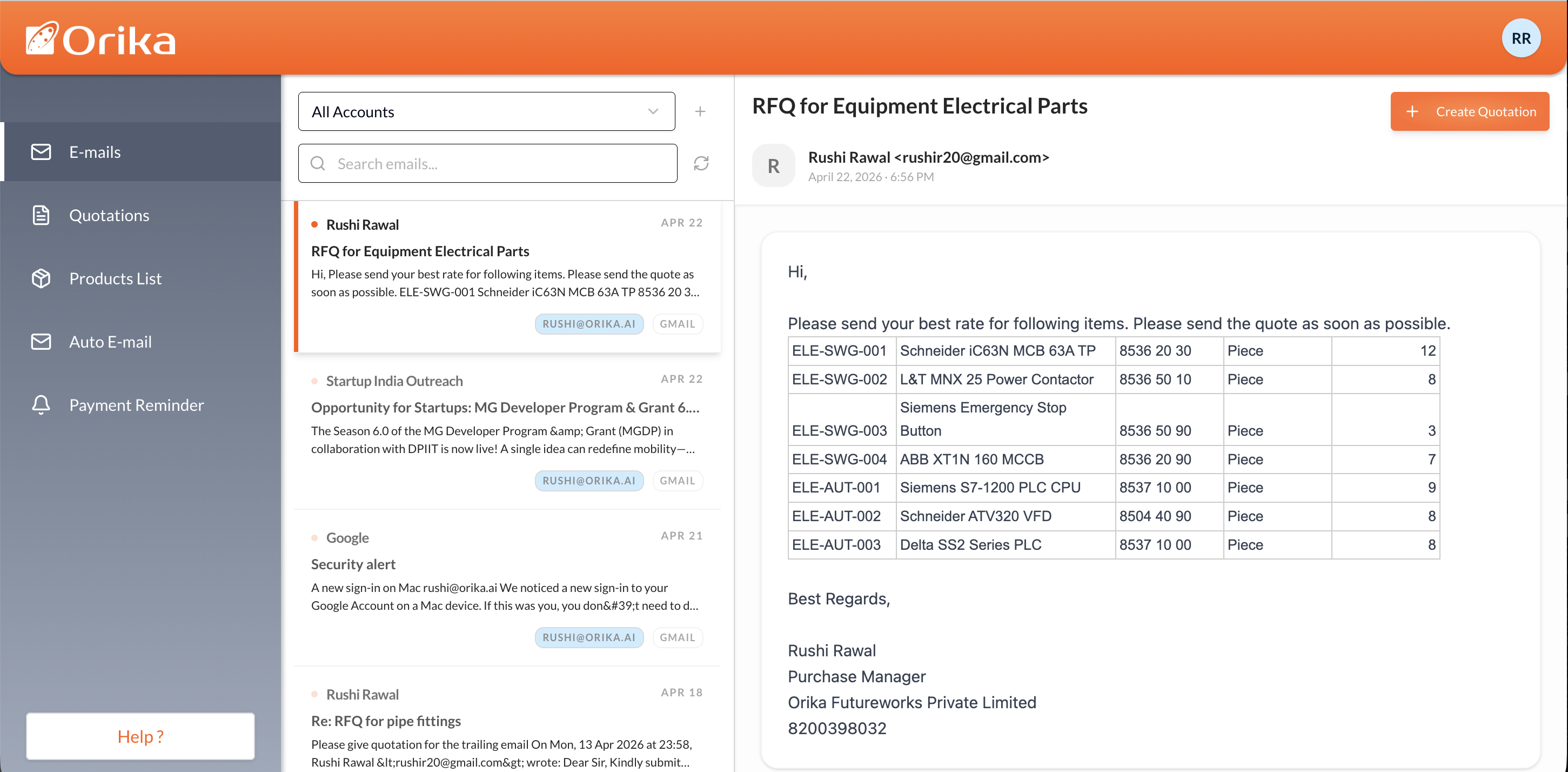
Sync & Generate in One Click

Connect Your Email to Generate Quotations Instantly

Sync your business email inbox with Orika in seconds. When a client inquiry or request for quote (RFQ) arrives, Orika's AI automatically extracts all line items, quantities, and customer data. With a single click of the "Generate Quotation" button, you get a ready-to-send, professionally formatted quotation instantly.

🔒app.orika.ai/sync-email
Orika Email Sync & Quotation Generator

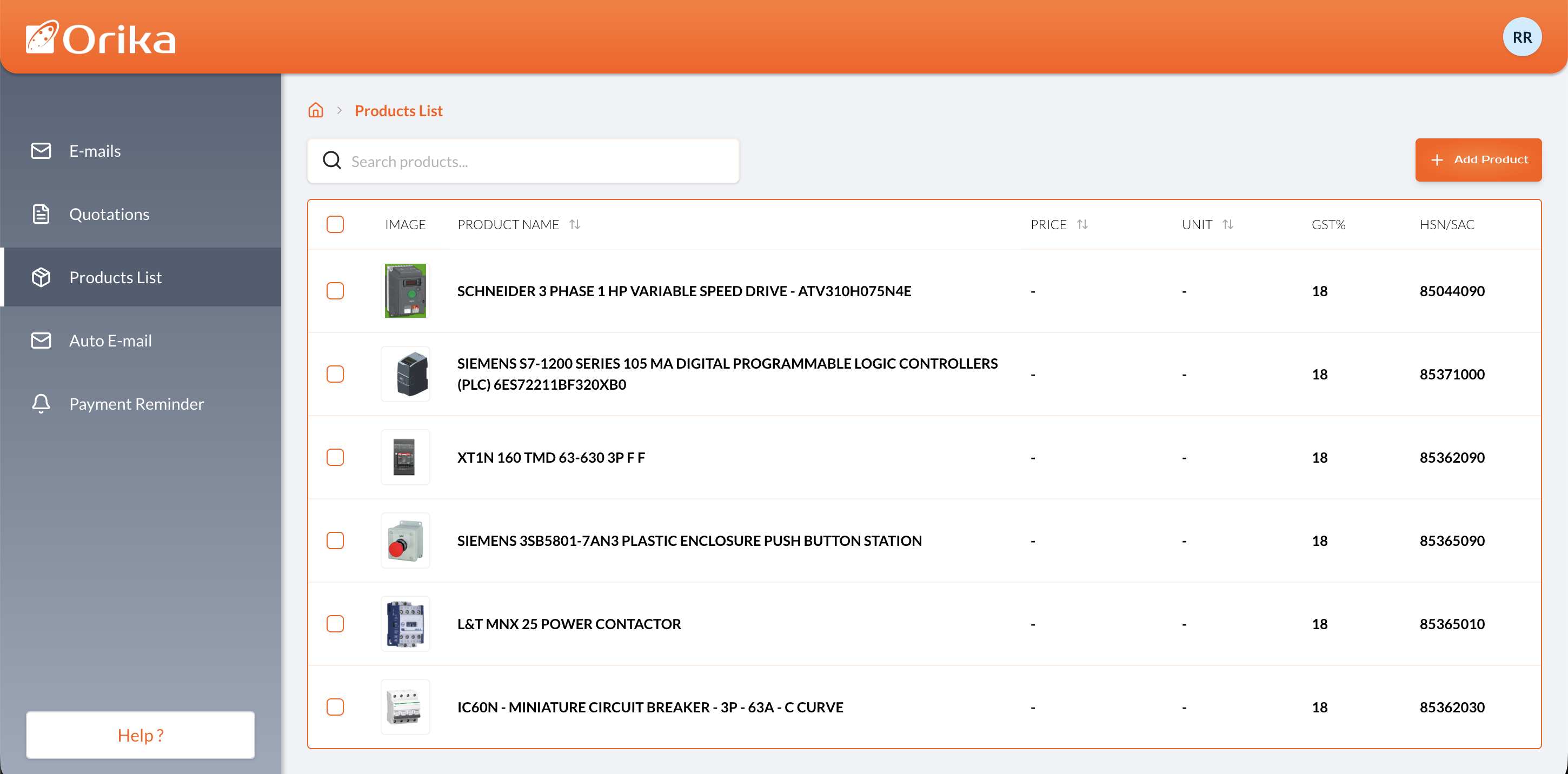
Product Catalog

Create your Product Catalog and use it in Quotations

You can capture Technical and Non Technical data of the product here. Moreover, you can upload the product document and Orika will create the product page for you automatically.

🔒app.orika.ai/products
Orika Product Catalog & Specifications

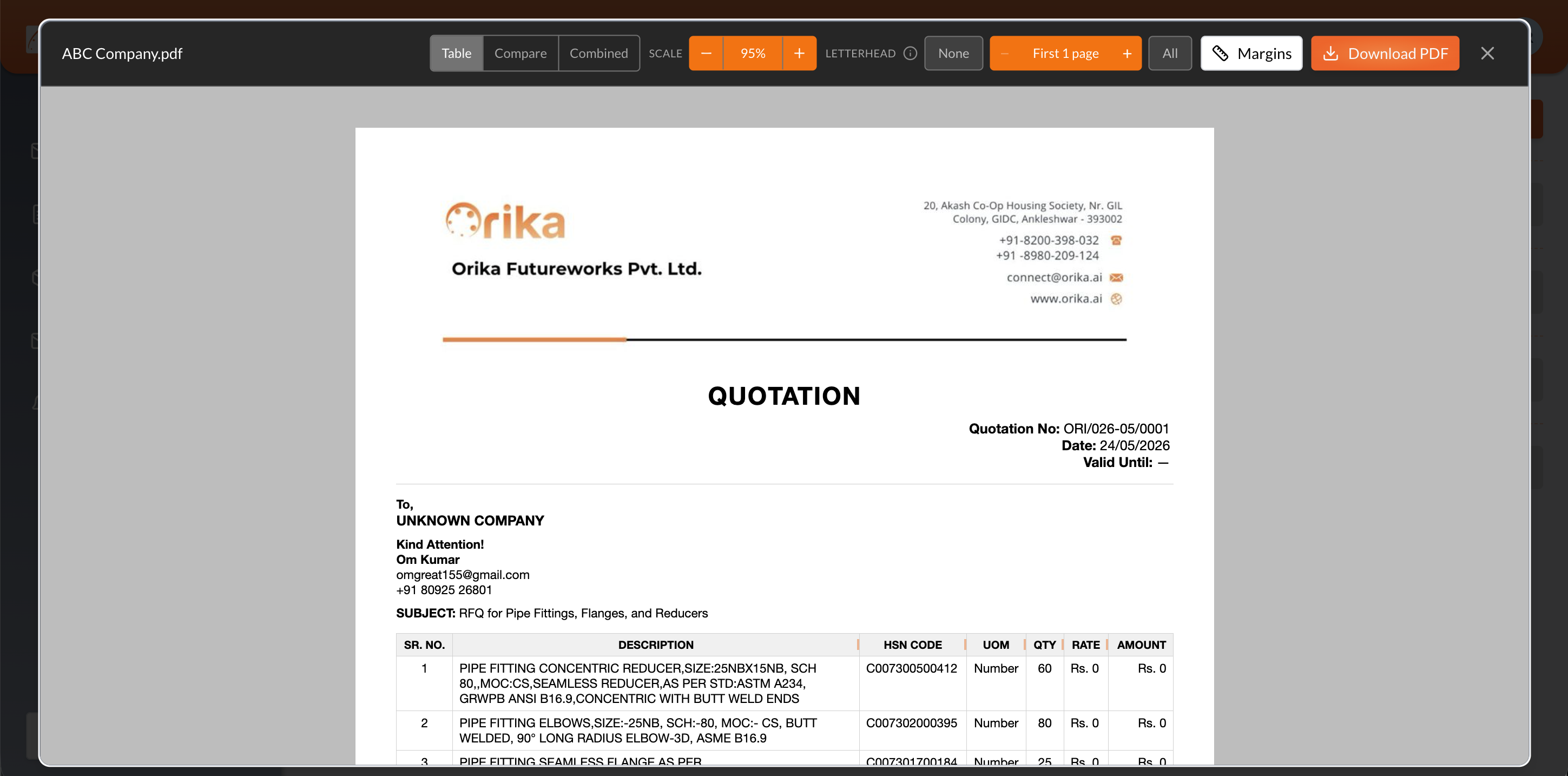
Customizable Designs

Fully Customizable Quotation Designs

Choose from different layouts and options to create a quotation that suits your brand. Customize columns, adjust margins, toggle technical parameters, and export clean professional PDFs in seconds.

🔒app.orika.ai/templates
Orika Quotation Customization Editor
Why Orika?

Built for Speed. Trusted for Security.

Blazing Fast

Every page loads faster than anything in the market.

Safe & Secure

We don't store your email data at all. The rest of the quotation related data we store in reputed storage services like AWS, Supabase.

24/7 Support

Call 8200398032 for any support related to Orika.

Regular Updates

We keep on adding new features and support to Orika, this is to improve user experience.

Pricing Plans

Plans for teams of all sizes

Free

₹ 0 /month

Starter

One month free plan, then upgrade to Professional.

What's included
  • Add multiple firms without any additional cost
  • Unlimited Quotations
  • Unlimited Data Storage
  • Mobile App Access

Professional

₹ 399 /month +18% GST

Large Team
What’s included
  • Add multiple firms without any additional cost
  • Unlimited Quotations
  • Unlimited Data Storage
  • Mobile App Access
TUTORIALS & GUIDES

Learn how to use Orika effectively

1. Learn how to add Multiple Email ID in your Orika Account.
2:03

1. Learn how to add Multiple Email ID in your Orika Account.

This video shows how an Orika user can add/track multiple email id in the same Orika account.

2. Learn how to make Quotations using Orika - Part 1(Automatic Method)
9:54

2. Learn how to make Quotations using Orika - Part 1(Automatic Method)

This video shows how an Orika user can generate Quotations using the "Create Quotation" button in the email section. This video is part 1 of the entire process it covers only the automatic method not the manual method.

3. Learn how to add multiple firms/companies in Orika Ai
1:39

3. Learn how to add multiple firms/companies in Orika Ai

In this video you learn how you can add multiple firms/companies in your Orika account.

4. Learn how to make Quotations using Orika - Part 2(Manual Method)
4:25

4. Learn how to make Quotations using Orika - Part 2(Manual Method)

This video shows how an Orika user can generate Quotations using the "Create Quotation" button in the email section. This video is part 2 of the entire process it covers only the manual method not the automatic method.

5. Learn how to change Quotation format, fonts, layout in Orika Ai
6:12

5. Learn how to change Quotation format, fonts, layout in Orika Ai

This video shows how an Orika user can change the format, layout and font style of any quotation they are building. Watch the full video.

6. Learn how to add Technical/Product Detail in any quotation. (Compare Layout)
8:23

6. Learn how to add Technical/Product Detail in any quotation. (Compare Layout)

This video shows how an Orika user can add technical details or product details in a quotation. Also we will learn about compare layout inside Orika Ai.

7. What if AI generates a wrong Quotation? Use Retry Button
2:54

7. What if AI generates a wrong Quotation? Use Retry Button

This video shows how an Orika user can use the "Retry Button" on the quotation page to correct the mistakes made by AI during Inquiry analysis.

8. Learn how to create a product page inside Orika Ai
7:32

8. Learn how to create a product page inside Orika Ai

This video shows how an Orika user can create a product page add image, technical details in it. Also this video shows how you can link product page to the quotation.

SUPPORT

Frequently asked
Questions

Can I create a quotation without linking my email address?×
Absolutely. You can generate quotations manually without connecting your email. Simply navigate to Add Quotation, select the Paste & Generate option, paste your inquiry details, and hit Done.
Does Orika store my emails?+
Can I manage multiple firms or companies under one Orika account?+
Will Orika share my data with third parties or competitors?+
Does Orika use my data to train its AI models?+
Where is my data securely stored?+

Take your business to the next level